
Scroll below for following content
Removing email account
Signing out
- Signing in
1. Removing account
- Close any other Office apps you have open. Outlook for Windows is linked to your other Microsoft Office (Microsoft 365) programs. Therefore, signing out of Outlook will also sign you out of other Office apps, such as Word, Excel, and OneDrive. Save your work in any open Office apps and close them before you continue
- Click the File menu. It's at the top-left corner of Outlook:
- While in info, click "Account Settings" then again "Account settings...":
- Choose the account you want to remove and press "Remove":
- You might get the following error after trying to Remove the account:
If so, click on "Data Files" and "Add" a temporary one first - Once added you should now be able to delete your email by following step 4 above:
- Close the Outlook fully, reopen it, and it should ask you to sign in with new account.
If Sign in page does not pop-up press on "Sign In" on top right
2. Singing out
1.Open Microsoft Outlook on your PC. You'll find it in your Windows Start menu.
2.Close any other Office apps you have open. Outlook for Windows is linked to your other Microsoft Office (Microsoft 365) programs. Therefore, signing out of Outlook will also sign you out of other Office apps, such as Word, Excel, and OneDrive. Save your work in any open Office apps and close them before you continue.
3.Click the File menu. It's at the top-left corner of Outlook.
4.Click Office Account. You'll see this toward the bottom of the left panel.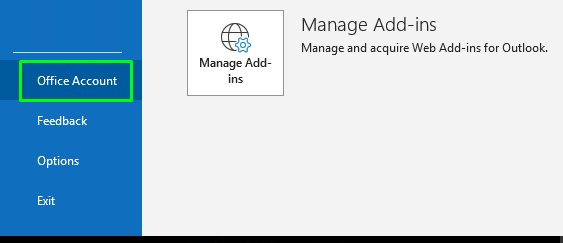
5.Click Sign out. It's in the upper-left corner under your name and email address. A confirmation message will appear, telling you you'll be signed out of all Office applications.
6.Click Sign out to confirm. This logs you out of Outlook and other Microsoft Office apps on your PC.
3. Singing in
1. Open Microsoft Outlook.
2. Click on Sign in
3. Enter your email address, click Next, then enter your password, if prompted.
Comments
0 comments
Article is closed for comments.